Body
From the app launcher, click All apps to see an alphabetical list of the Office 365apps available to you. From there, you can search for a specific app—and pin it to the app launcher, if it isn't already.
Pin Office 365 apps to the app launcher
When you view the app launcher for the first time, you'll see the core Office apps. If your favorites aren't shown, you can add them—giving you quick access to the Office apps you use most frequently.
-
To pin an Office 365 app to the left sidebar on the Microsoft 365 Home portal:
- Click the App Launcher (grid icon) in the top-left corner.
- Select All apps if the desired app isn't visible.
- Hover over the app you want to add, click the three dots (More options), and select Pin.
Change the Office 365 theme
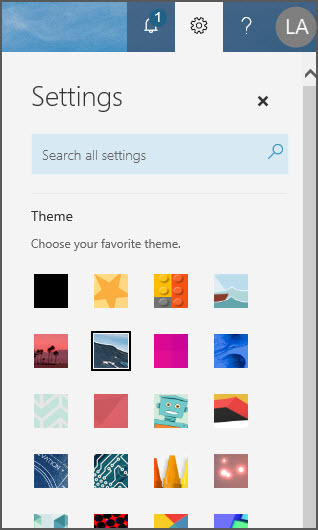
The Office 365 theme sets the color scheme and backdrop for the Office 365 navigation bar at the top of the screen. It also changes the color of some of the tiles in the App launcher to match.
-
On the Office 365 navigation bar at the top of the screen, click the Settings icon  .
.
-
Click a theme in the gallery to see it previewed on your screen. Scroll down and click Save to set it as your theme.
Change Office 365 notifications
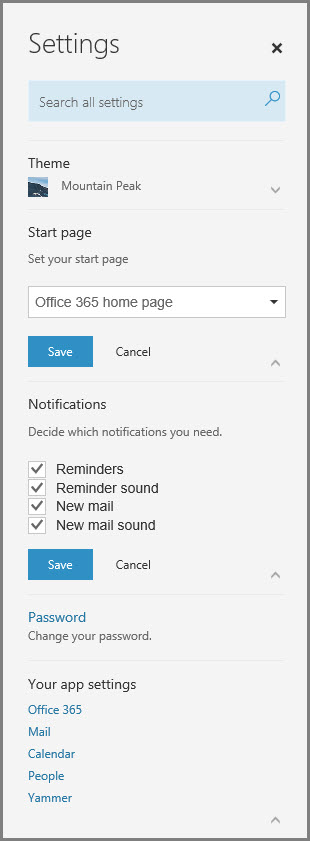
By default, Office 365 will ping you when new mail arrives and when it's time for a reminder--with a pop up or with a sound. You can change these settings at any time.
-
In the Office 365 navigation bar at the top of the screen, click the Settings icon .
-
Under Notifications, click the arrow to open the list and select or clear notifications to enable or disable them, and then click Save.
How do I use the app launcher?
From the Office 365 app launcher, click (or tap) a tile to go to that web app or service. For example, you might choose Outlook to go to your email, or OneDrive to go to your OneDrive for Business library.
You can also quickly open any Office documents you've been working on recently, or create a new one by clicking the New button and selecting an Office app. These documents are automatically stored in OneDrive.
|
Tile
|
What it does
|
|
Outlook
|
Takes you to your mail and calendar in Outlook on the web.
|
|
OneDrive
|
Takes you to your OneDrive for Business library (see What is OneDrive for Business?).
|
|
Word or Word for the web
|
Creates a new Word document in the browser window (Word for the web), which is saved automatically to your OneDrive for Business library (see What’s new in Word).
|
|
Excel or Excel for the web
|
Creates a new Excel workbook in the browser window (Excel for the web), which is saved automatically to your OneDrive for Business library (see What’s New in Excel Online).
|
|
PowerPoint or PowerPoint for the web
|
Creates a new PowerPoint presentation in the browser window (PowerPoint for the web), which is saved automatically to your OneDrive for Business library (see Basic tasks in PowerPoint for the web).
|
|
OneNote or OneNote for the web
|
Opens your OneNote notebook in the browser window (OneNote for the web), which is saved automatically to your OneDrive for Business library (see Basic tasks in OneNote for the web).
|
|
SharePoint
|
Opens SharePoint, where you can share your work, work with others, organize your projects and teams and discover people and information (see Get started with SharePoint).
|
|
Teams
|
Opens Teams, a chat-centered workspace (see Microsoft Teams Quick Start).
|
|
Admin
(Available only to Office 365 administrators)
|
Takes you to your admin center (see this article for more information).
|